A Quick Guide to Perusall 1.3
*Note* The interface and features of Perusall may change over time without much advance notice. Please check out their ‘Changelog‘ for updates, improvements, and fixes. [Updated 1/26]
Starting with the fall 2023 semester, a new version of Perusall (v. 1.3) is available in Lyceum. Perusall materials associated with a Lyceum course before fall 2023 need to be imported for re-use.
Adding Perusall to your Lyceum Course
From your course home page, enable “Edit mode” and decide where you’d like to place your Perusall link. Select the “+” (or “Add content” icon) associated with that location and choose “Activity or resource”. From the “Add an activity or resource” menu, select “Perusall 1.3: 2023.” Provide a name for the Activity (“Perusall”) and “Save and return to course.”
Logging into Perusall
After creating the Perusall link in your course, select it to gain access to Perusall, which will generate Perusall course associated with your Lyceum course You’ll land at the “Getting Started” tab, where you have the option to start with an empty course or to copy content from an existing course.
If you’re starting with a blank course with new content, you can familiarize yourself with general features, especially the “Basic settings” tab:
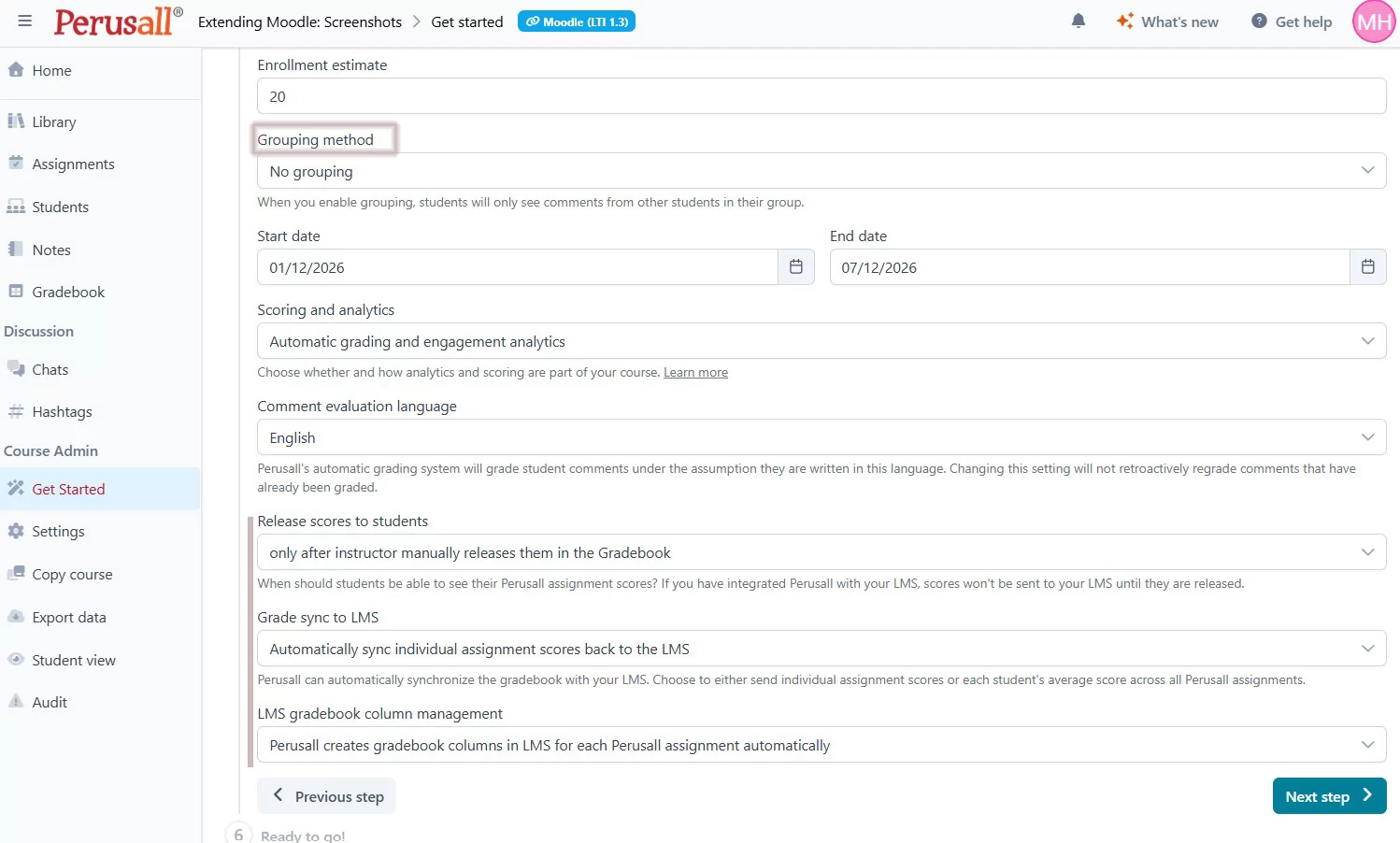
At the “Basic settings” tab you can choose your course “Grouping method” as well as review the settings that control porting Perusall grades to your Lyceum course’s gradebook.
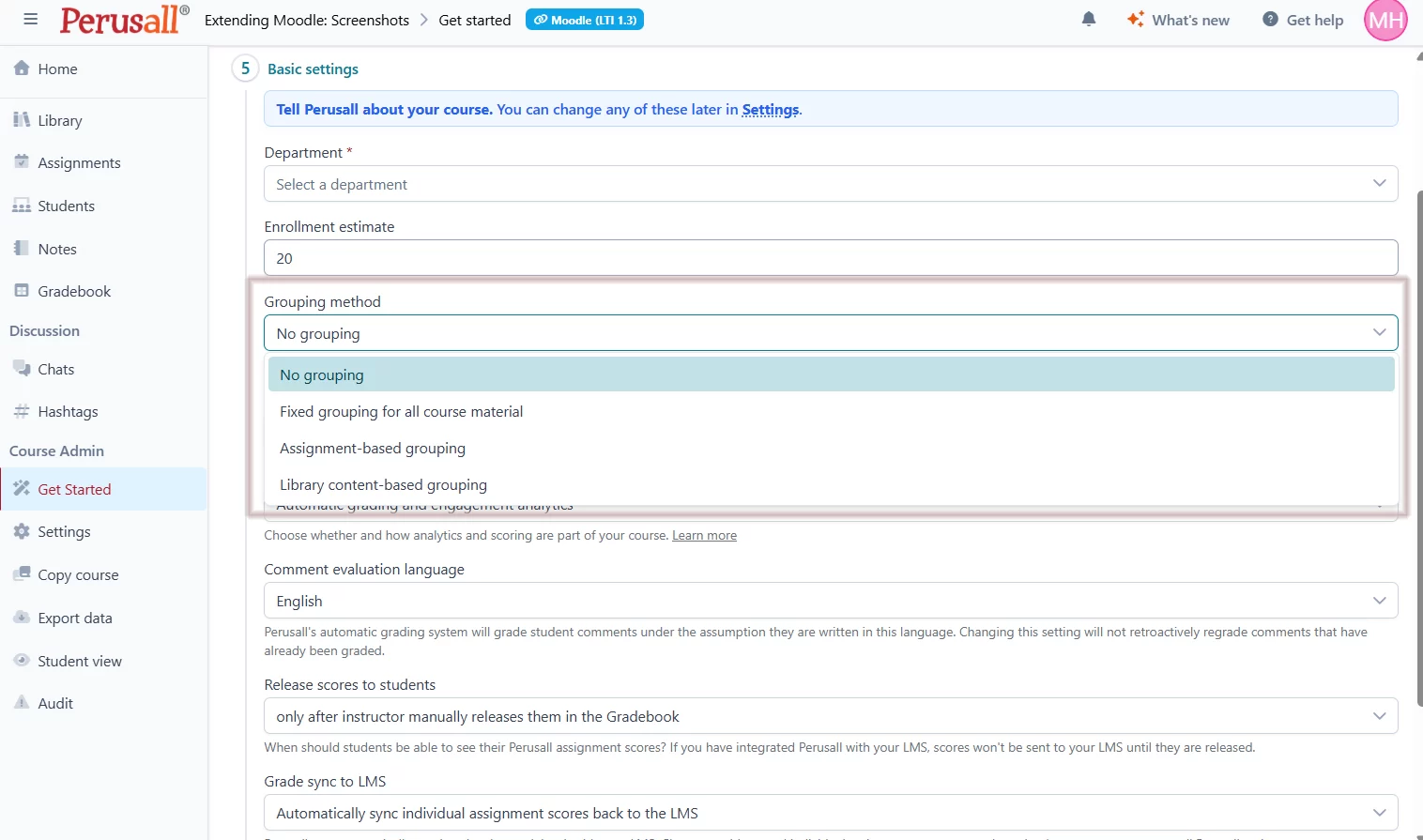
Any changes you make are not permanent: you can revisit any changes at the course “Settings” tab. Follow the “Next Step” button to complete the quick review of your course and then click “Continue to Library”.
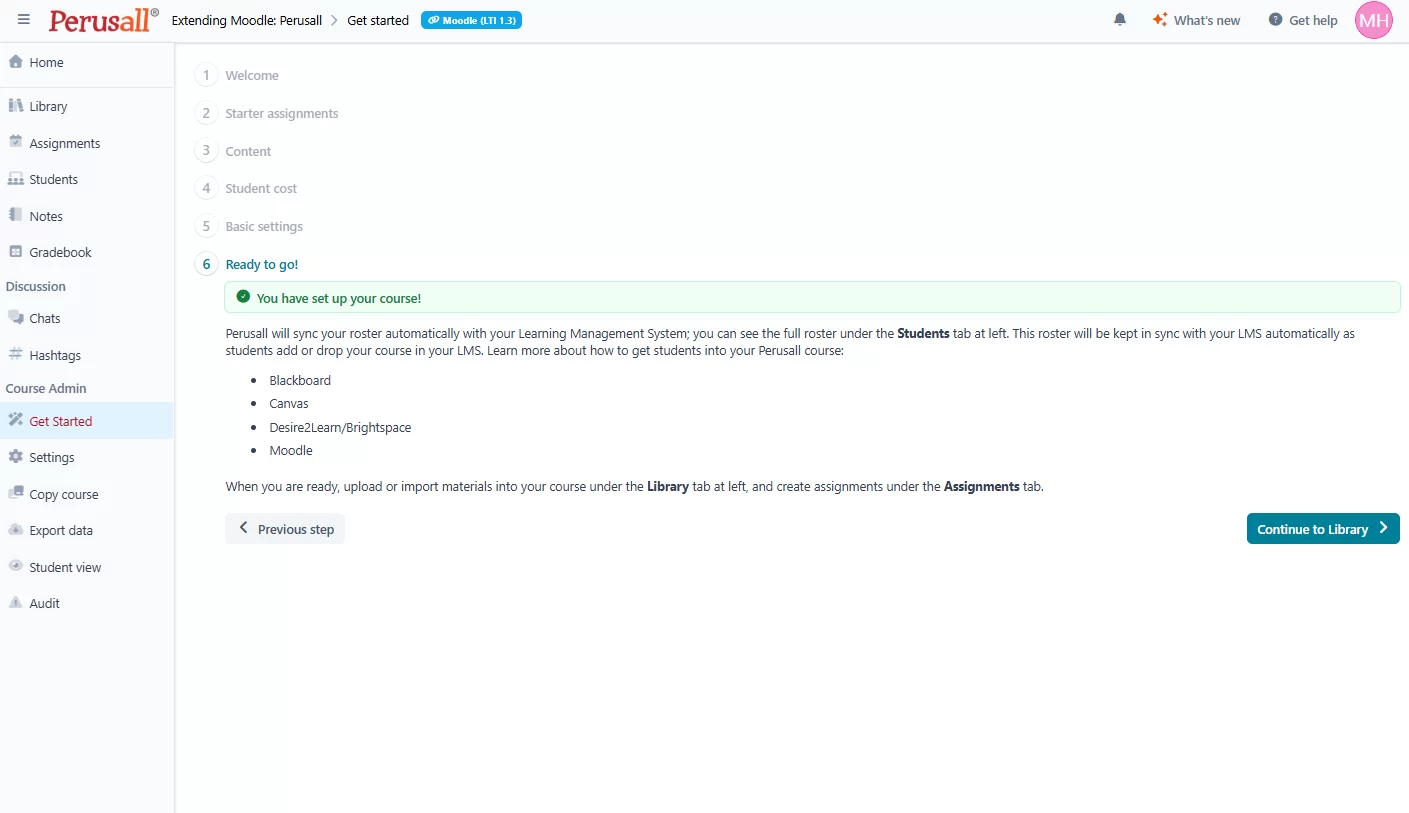
Library: Adding Content
Perusall activities consist of two sequential basic steps: adding content (typically a PDF of a reading) to the Library; creating an Assignment associated with the content type added to the LIbrary. This process is repeated for each activity you want to assign to your students.
At the “Library” tab select the “Add content” menu, select “Document” > “Upload from my device” (to upload a PDF, for example).
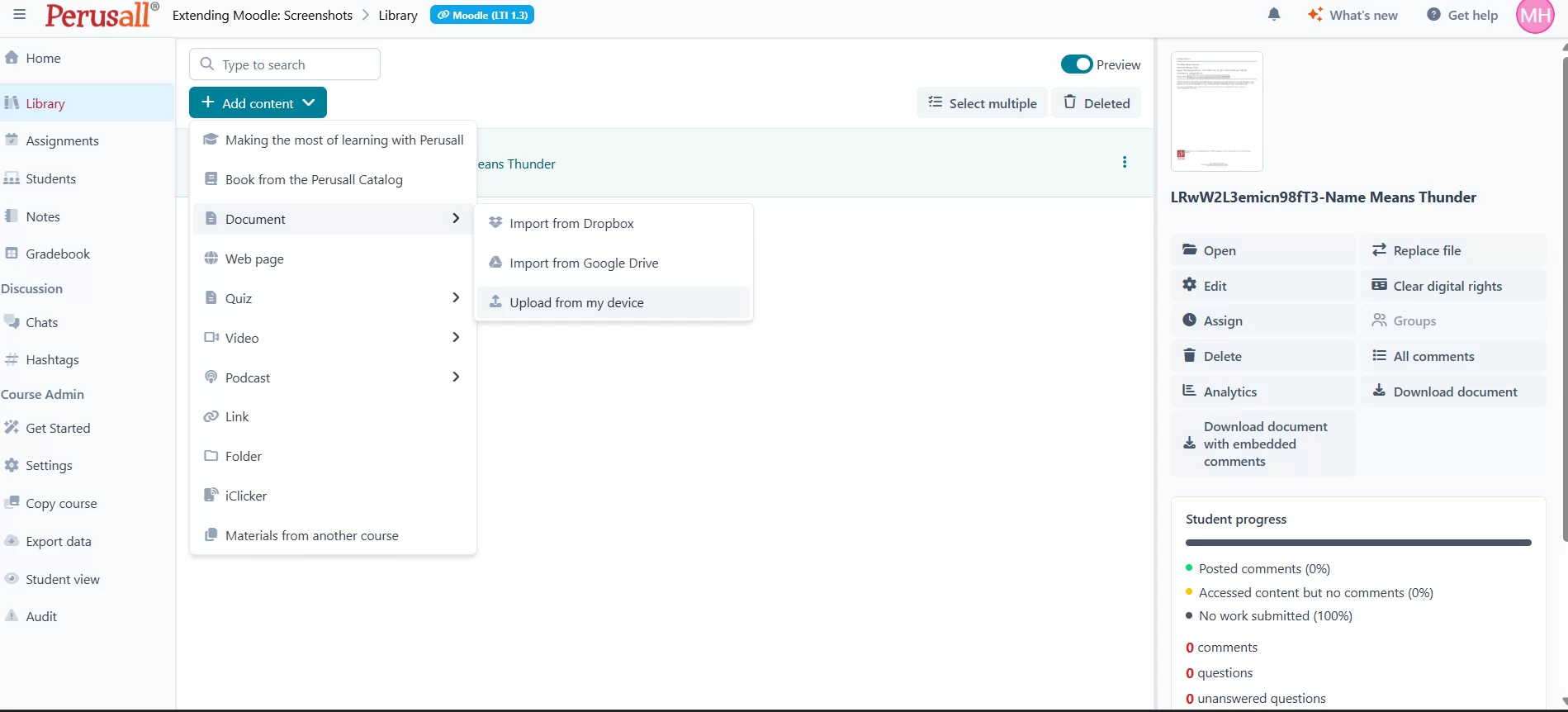
After choose how you want to add the document/file to Perusall, the system will add the file to your Library of documents
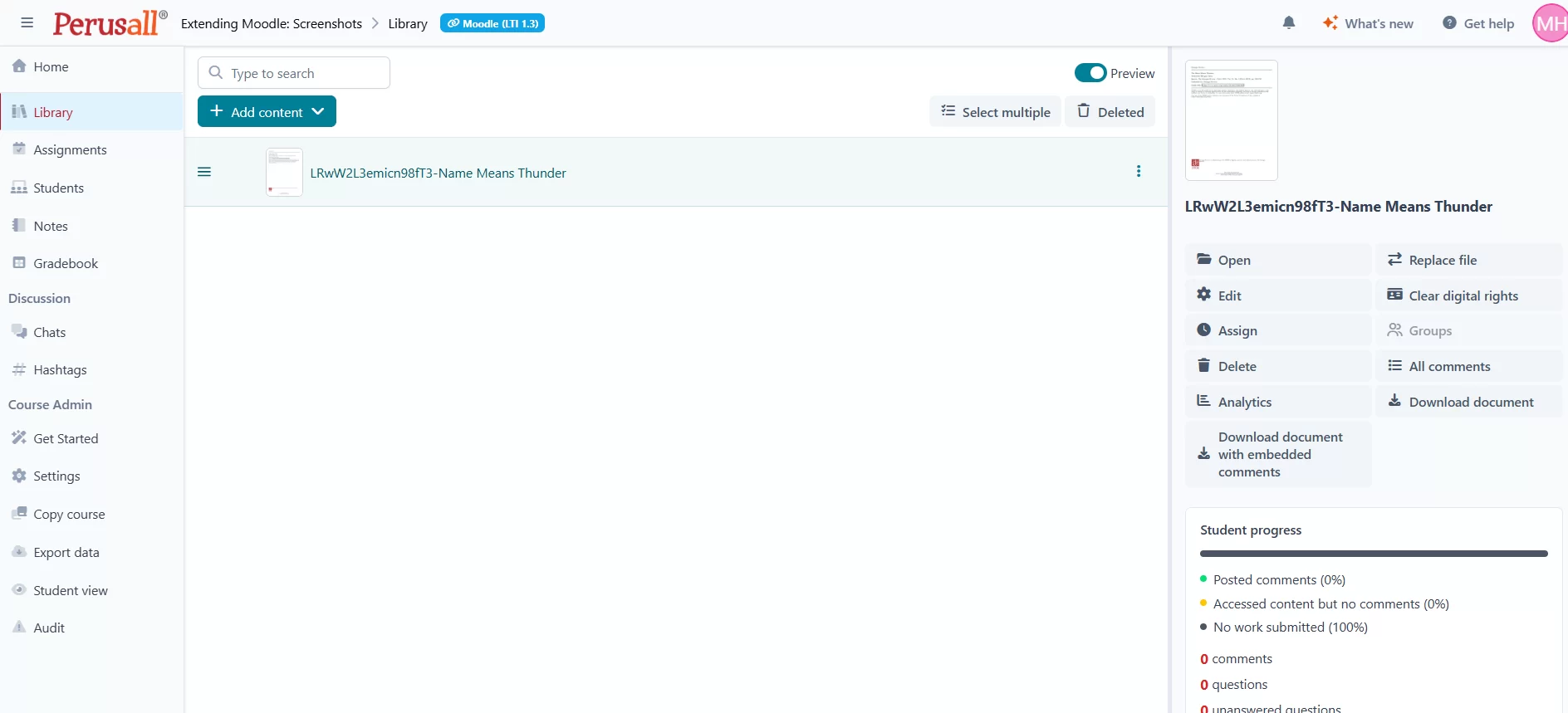
After your file has been successfully uploaded and processed, select the “Assignments” tab:
Creating an Assignment
From the “Add assignment” menu select “Add assignment”:
From the “Add assignment” window, select the file (previously uploaded) and select “OK”:
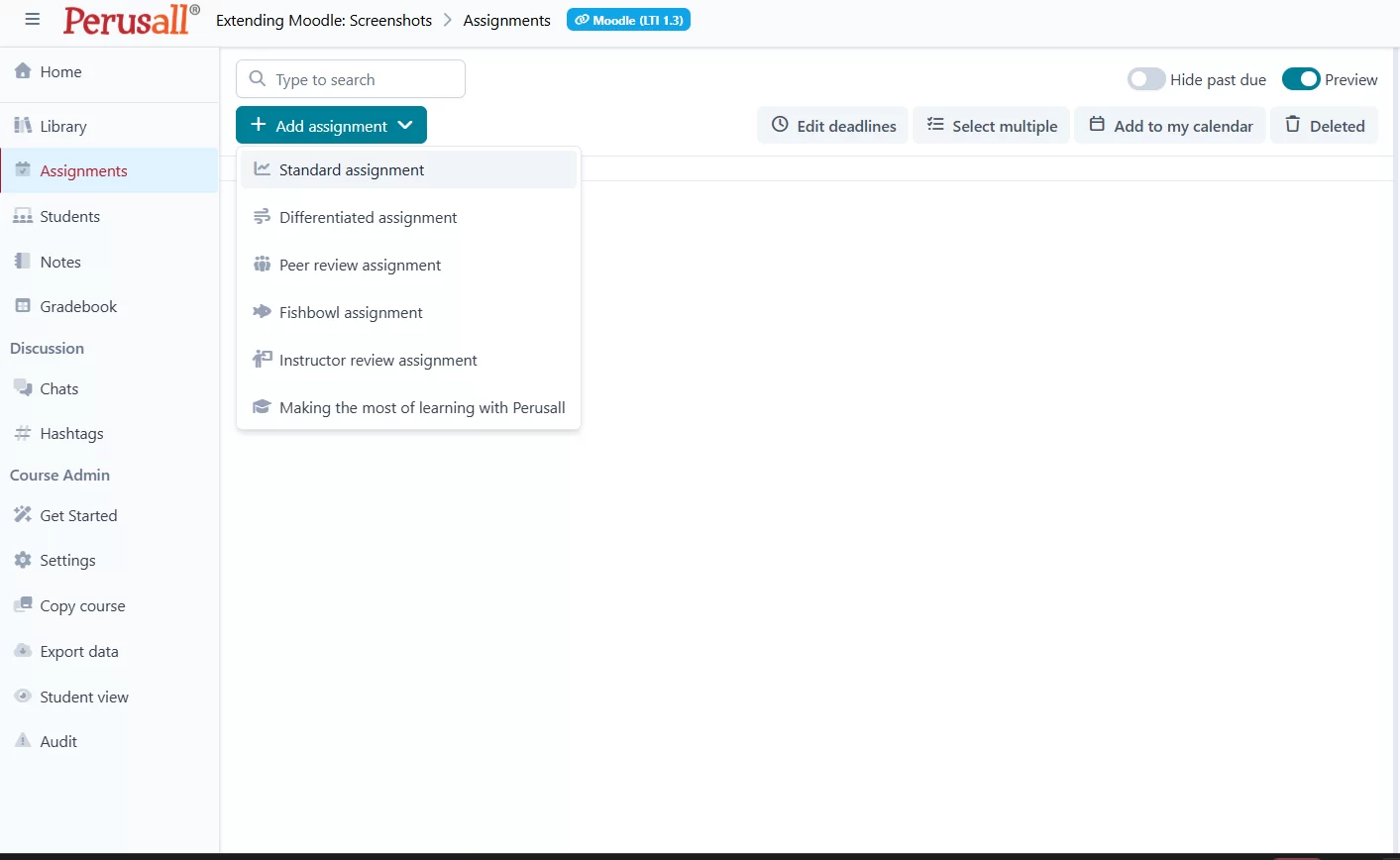
Select “Standard assignment” and follow the prompts for associating a Assignment with an uploaded item from the Library:
Your assignment is now created:
**For more detailed information on Perusall and its features, follow these help sheets and FAQs provided by Perusall Support: